AnnePro2 Tools Setup Guide

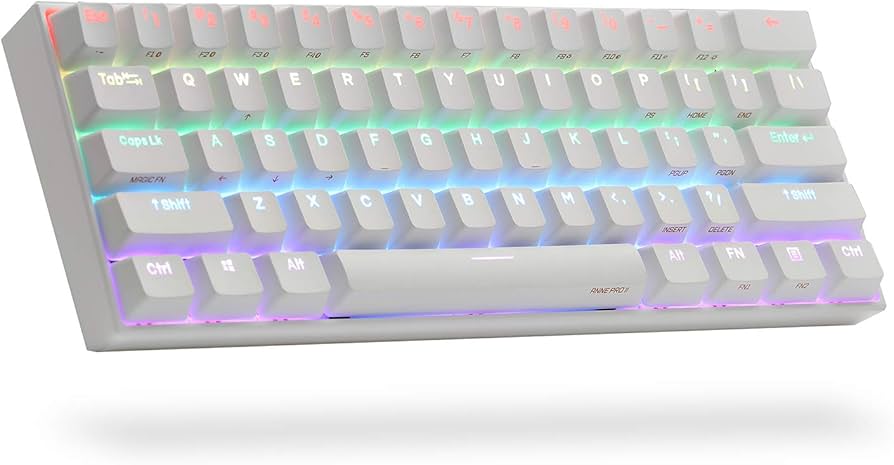
Steps to Compile AnnePro2 Tools
- Install Rust Toolchain
- Install the latest stable Rust toolchain using
rustup. - Also, install Visual Studio Community Edition with the C/C++ module to prevent compilation errors.
- Install the latest stable Rust toolchain using
- Download or Clone the AnnePro2-Tools Project
- Download or clone the AnnePro2-Tools project from its repository.
- Compile the Tool
- Run the following command to compile the tool:
cargo build --release - After compiling, the tool will be available in
./target/release/annepro2_tools. (From here on, we’ll refer to this asannepro2_tools).
- Run the following command to compile the tool:
- Add PATH
- Add the following path to your environment variables:
C:\Users\user\Desktop\annepro2\AnnePro2-Tools-master\target\release
- Add the following path to your environment variables:
Manually Compiling the QMK Firmware
- Clone the QMK Firmware Fork
- Use the command below to clone the forked QMK firmware (install Git if you haven't already):
git clonehttps://github.com/your_fork_of_qmk_firmware
- Use the command below to clone the forked QMK firmware (install Git if you haven't already):
- Install Required Toolchains
- Obtain the
gcc-arm-none-eabitoolchain, which is required for building the project.
- Obtain the
- Compile the Firmware
- Use the appropriate command for your revision:
# For C15 Revision
make annepro2/c15# For C18 Revision
make annepro2/c18
- Use the appropriate command for your revision:
- Locate the Compiled File
- After a successful build, you should see a file named
annepro2_c15(18)_default.binin your directory. This file is a compiled keymap profile, ready to be flashed onto your keyboard. - Other Keymap Options: You’ll also find additional default and user-created keymaps in the same directory. For specific information on their differences, check their
keymap.cfile inannepro_qmk/keyboards/annepro2/keymaps/profile/keymap.c.
- After a successful build, you should see a file named
Available Keymap Profiles
annepro2_c15(18)_default.bin: Matches the default Obinskit mapping, with no Caps Lock or layer indicators.annepro2_c15(18)_default-full-caps.bin: Same as above but switches LEDs to red to indicate Caps Lock.annepro2_c15(18)_default-layer-indicators.bin: Includes Caps Lock indicator and LED changes to show the active layer.
For more customization information, check the customization page.
Setting Up Cargo and GCC Dependencies
- Install Rust Toolchain
Install the latest stable Rust toolchain usingrustup. - Install MSYS2
- Go to MSYS2.org and download
msys2-x86_64-20220603.exe(or the latest version). - Follow the installation steps and note the installation path to add it to your environment
PATH.
- Go to MSYS2.org and download
- Update Packages and Databases
- Open the MSYS2 terminal and run:
pacman -Syu - (Optional) Run the update command again to ensure all packages are up-to-date:
pacman -Syu
- Open the MSYS2 terminal and run:
- Install Base Development Packages
- In the MSYS2 terminal, install essential packages by running:
pacman -S --needed base-devel mingw-w64-x86_64-toolchain - Note: Press enter if you’re unsure which packages to select.
- In the MSYS2 terminal, install essential packages by running:
- Add
gcc.exeto PATH- Find
gcc.exein theC:\msys64\mingw64\binfolder (or your MSYS2 installation path) and add it to your environmentPATH.
- Find
- Restart Your Terminal
- Close and reopen your terminal to apply the updated environment paths.
Flashing the Firmware
- Flash the Main Binary
- Run:bashCopiar códigoannepro2_tools annepro2_c18_default-layer-indicators-notarior.bin
- Run:bashCopiar códigoannepro2_tools annepro2_c18_default-layer-indicators-notarior.bin
- Flash the LED Binary
- Run:bashCopiar códigoannepro2_tools --boot -t led annepro2-shine-C18.bin
- Run:bashCopiar códigoannepro2_tools --boot -t led annepro2-shine-C18.bin
Building the Shine Firmware
- Clone the Shine Repository
- Use the following command to clone the repository:
git clonehttps://github.com/OpenAnnePro/annepro2-shine.git --recursive
- Use the following command to clone the repository:
- Build the Firmware
- For C15 Revision:bashCopiar códigomake C15
- For C18 Revision:bashCopiar códigomake C18
- To build for both:
make
- For C15 Revision:bashCopiar códigomake C15
- Locate the Built Binary
- If built successfully, the binary file will be in the
build/directory. Flash the.binfile usingannepro2_tools.
- If built successfully, the binary file will be in the
Notes on Flashing
- Using
--bootautomatically restarts the keyboard in normal mode after flashing. Omit this option if you plan to flash additional components. - Enter IAP Mode: With QMK installed, you can switch to IAP mode by pressing
LSHIFT + RSHIFT + B. This is helpful for further customization. Check the QMK Docs for more information.